
Chrome extension
Save financial documents from any website to Receiptor.
Capture a PDF, an image, or the entire page in Chrome. Preview it, confirm your workspace, and save it straight into the same workflow as your email receipts.
Works in Google Chrome. A Receiptor account is required.
How it works
From a web page to your workspace in four steps.
When a document only exists on a website, you should not need to download it, rename it, and upload it again.
Step 1
Sign in with your Receiptor account
Open the extension from the Chrome toolbar and sign in. You choose the workspace on Receiptor's consent screen, so documents land where you expect.
Step 2
Capture the document
Find PDF and image links on the page you are viewing, take a screenshot of the entire page including content below the screen, or choose a file from your computer.
Step 3
Preview and confirm the destination
Check the preview and the workspace shown below it. Nothing is sent to Receiptor until you click Save to Receiptor.
Step 4
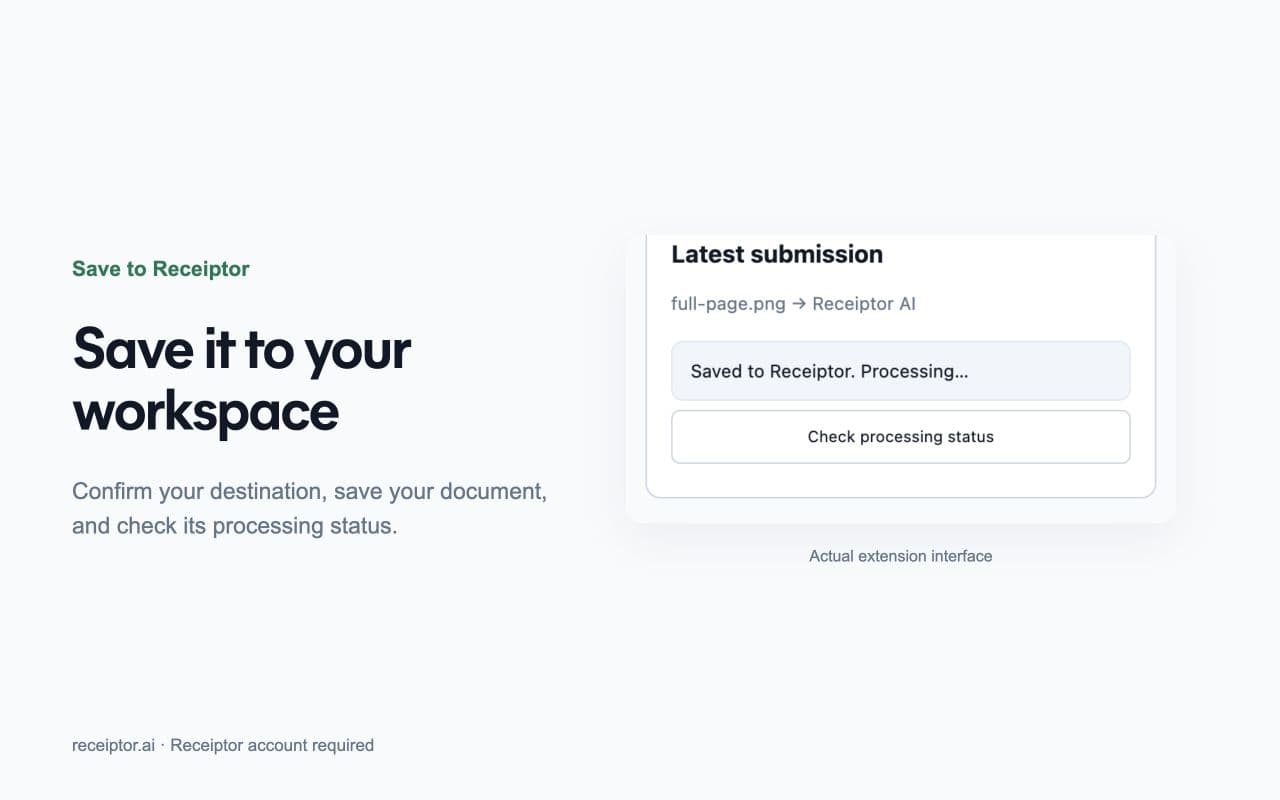
Save and check processing
Receiptor accepts the file, then extracts and organizes it like any other document. The extension shows the processing status and links to the result.
What you get
The missing source for documents that never arrive by email.
Receiptor already collects from email inboxes, WhatsApp, iMessage, and uploads. The extension adds the browser, so the documents left on websites end up in the same place.
Capture documents that never reach your inbox
Some invoices only live in a supplier portal, a billing page, or an order confirmation screen. Save them from the page instead of downloading, renaming, and uploading by hand.
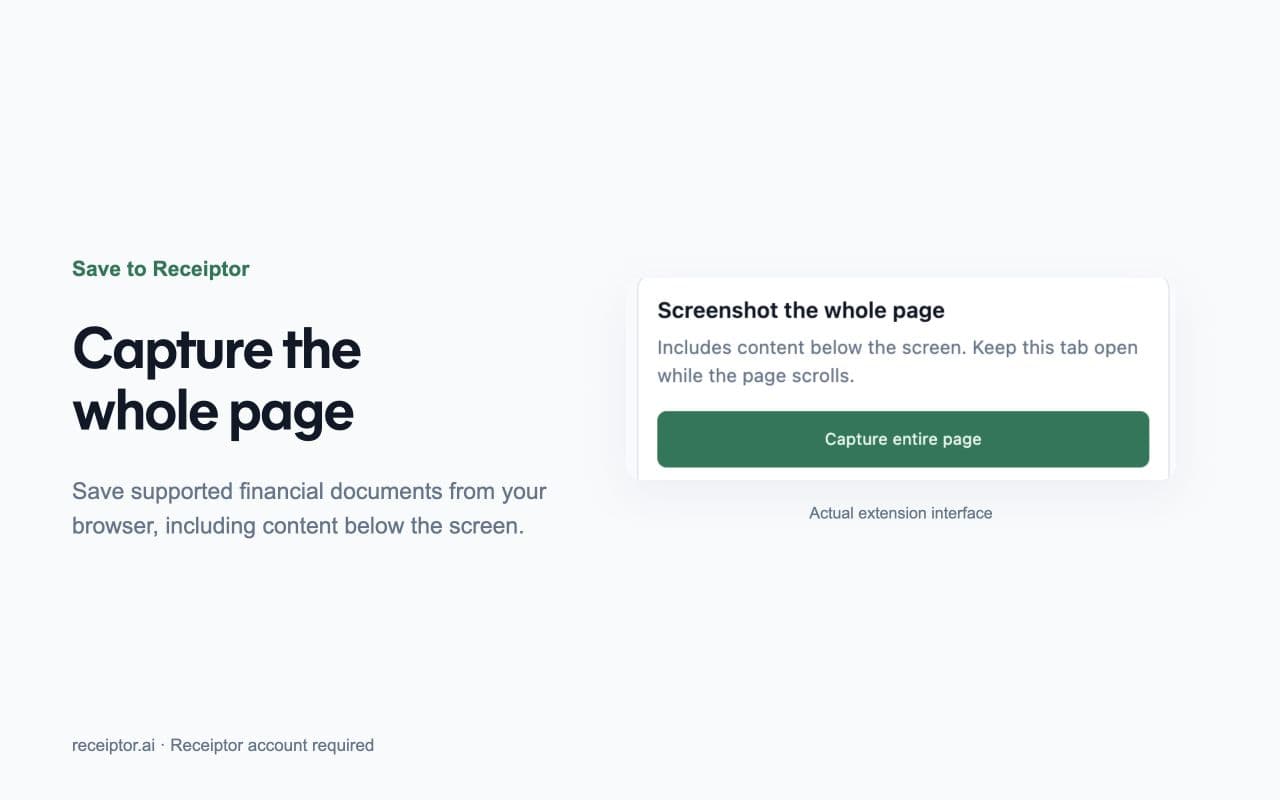
Screenshot the whole page
For pages with no download button, capture the entire page as one image, including content below the screen. Receiptor processes it like any other image.
You decide what gets saved
Every capture is previewed first. The extension only reads the tab you open it on, and asks before it needs access to another website.
Recover when a save is interrupted
If the connection drops during a save, retry it from the extension. A pending file stays in your browser for up to 24 hours and can be discarded at any time.
Use cases
When the extension saves you the most time.
These are the situations where a document is one click away in the browser but nowhere in your inbox.
A supplier invoice you can only download after logging in to a vendor portal.
A subscription receipt shown on a billing page, with no email attached.
An online order confirmation that you need as a record for the books.
A PDF you already have on your computer and want in your workspace without leaving the browser.
Privacy and control
Built to ask before it acts.
- Sign-in uses Receiptor's own consent screen, where you pick the workspace.
- Previews stay in the extension and disappear when you close it, until you confirm Save.
- Access to other websites is optional and granted by you.
- Signing out clears the extension's session and any pending file from this browser.
Read the privacy policy for the details.
FAQ
Questions before you install.
What does the Save to Receiptor extension do?
It lets you save receipts, invoices, and other supported financial documents from Chrome to your Receiptor workspace. You can capture a PDF or image from the page, screenshot the entire page, or choose a file from your computer.
Do I need a Receiptor account?
Yes. The extension saves documents to your Receiptor workspace, so you sign in with your Receiptor account the first time you use it. See pricing for plans.
Which file types can I save?
PDFs and images (PNG, JPEG, and WebP) up to 10 MB. Receiptor validates every file when it is uploaded.
Which browsers does it work in?
Google Chrome. You can install it from the Chrome Web Store.
What can the extension see?
It works on the tab you open it on. Access to other websites is optional and requested only when you need it. Read the privacy policy for the full details.
Does it replace email collection?
No. Email inboxes, WhatsApp, iMessage, and uploads keep collecting documents as before. The extension covers the documents that only exist on a website.
What happens after I save a document?
The document goes through the same workflow as every other source: extraction, categorization, and review, with the original file kept alongside the data.
Get started
Stop downloading and re-uploading documents from websites.
Add Save to Receiptor to Chrome, sign in, and send the next invoice you find on a website straight to your workspace.